Tutorial
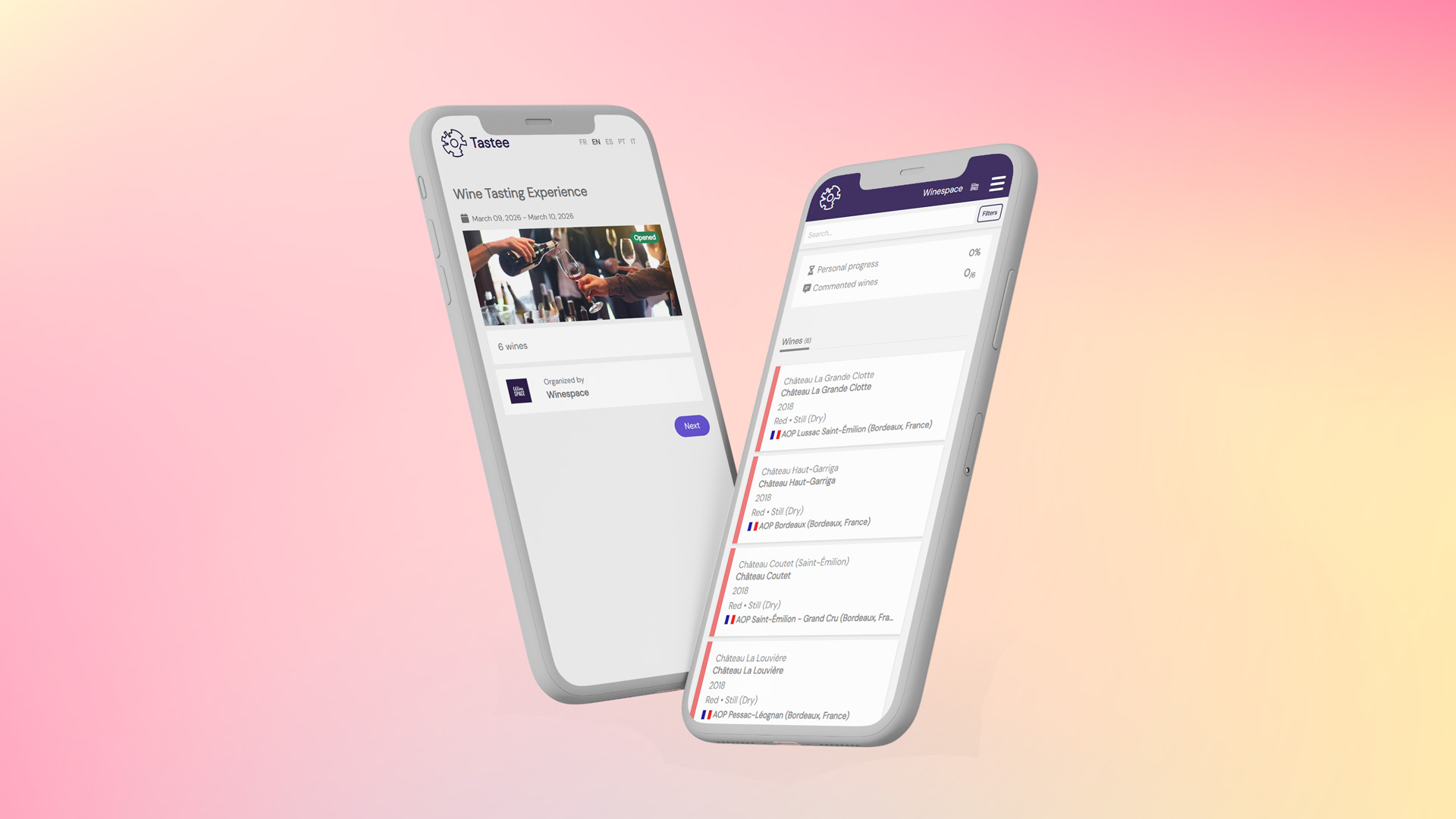
A tasting notebook is at the heart of every successful wine event. Equal parts wine list and tasting guide, it informs, sets the mood, and creates a connection between participants and producers. Long confined to paper, the digital tasting notebook is now establishing itself as a modern and compelling alternative: lower cost, more flexible, richer in content, and capable of collecting data that paper simply cannot capture.
Tastee's Session feature makes it easy to create a digital tasting notebook quickly and affordably, giving event organisers full control over every step, an enriched experience for participants, and actionable on-the-ground feedback.
This tutorial walks you through creating your digital tasting notebook with Tastee.
The Session feature is available on collaborative Tastee accounts (from €30/month). Contact the Winespace team to set yours up.
Want to see what a Tastee tasting notebook looks like? Check out this example before you start.

From your Tastee dashboard, create a new session and choose your tasting mode:
Select the default display language from the 5 available, fill in the required fields, and save. You can edit or complete your session at any time.
There are two ways to add wines to your tasting notebook.
For small events with a few dozen wines, the manual method is recommended. For medium or large events with dozens or even hundreds of cuvées, Excel or CSV import will save significant time.
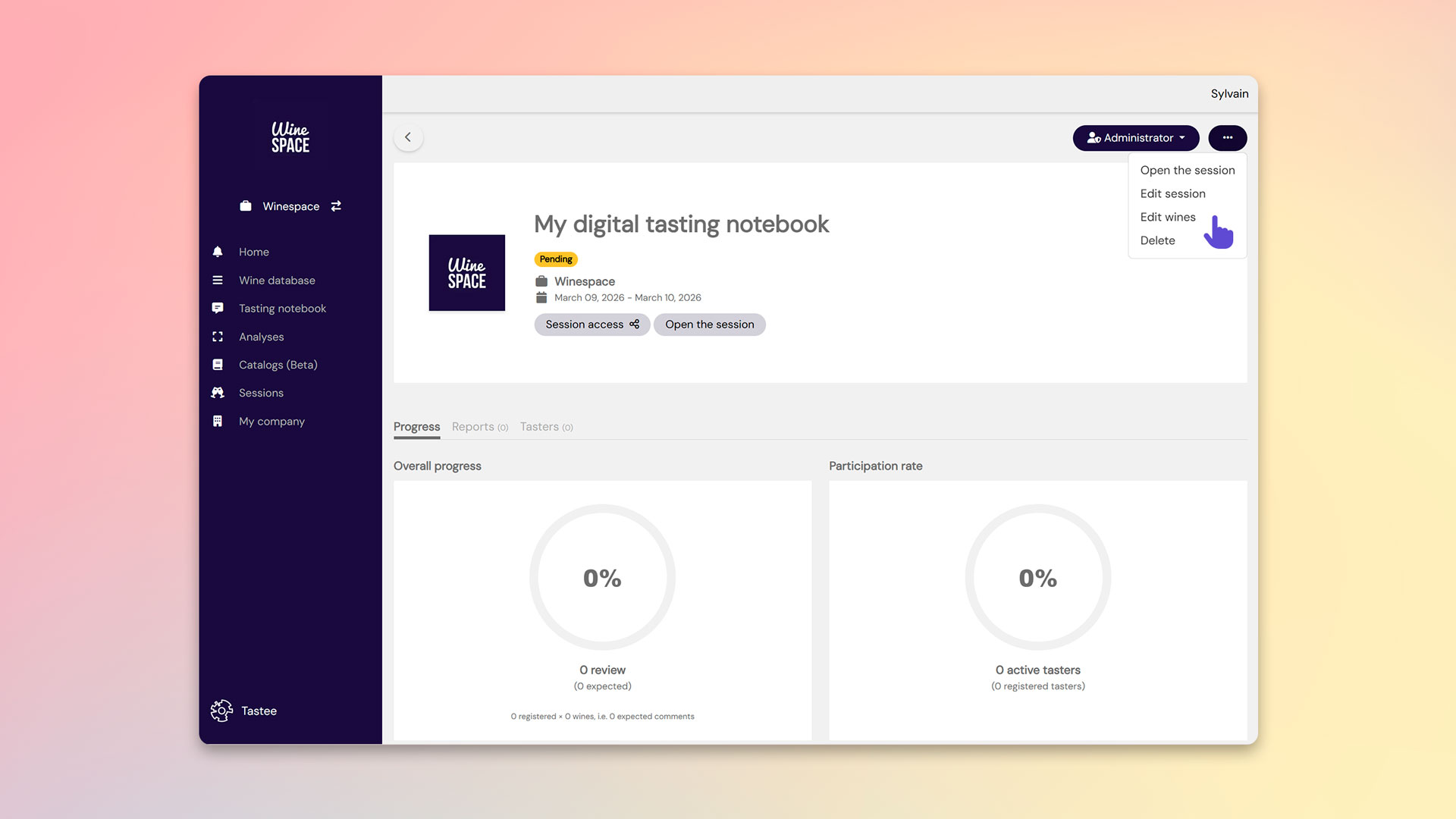
1. Click "..." in the top-right corner, then "Edit wines"
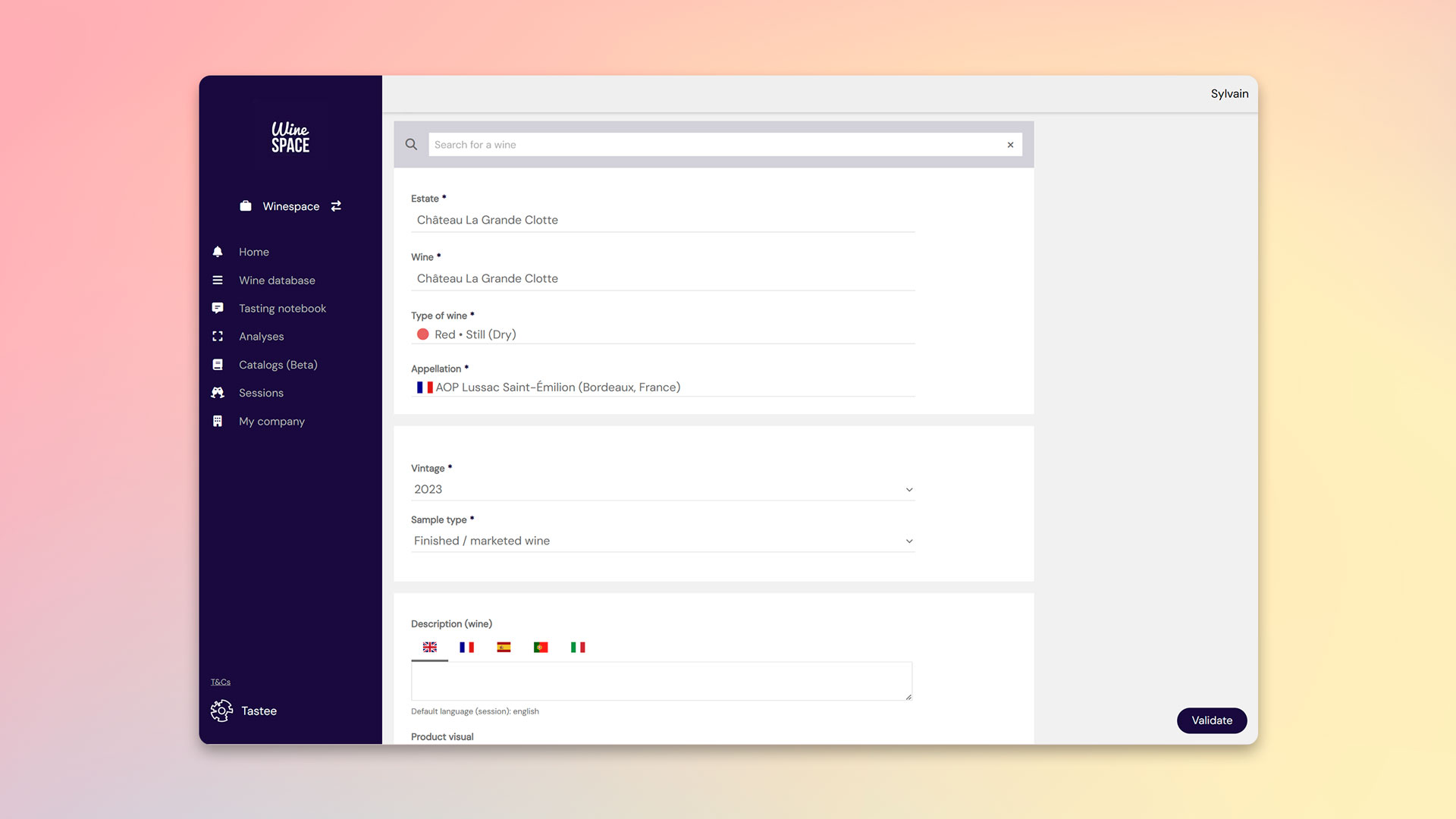
2. Click "Add a wine" and fill in each cuvée's details: packshot, editorial content, downloadable PDF technical sheet
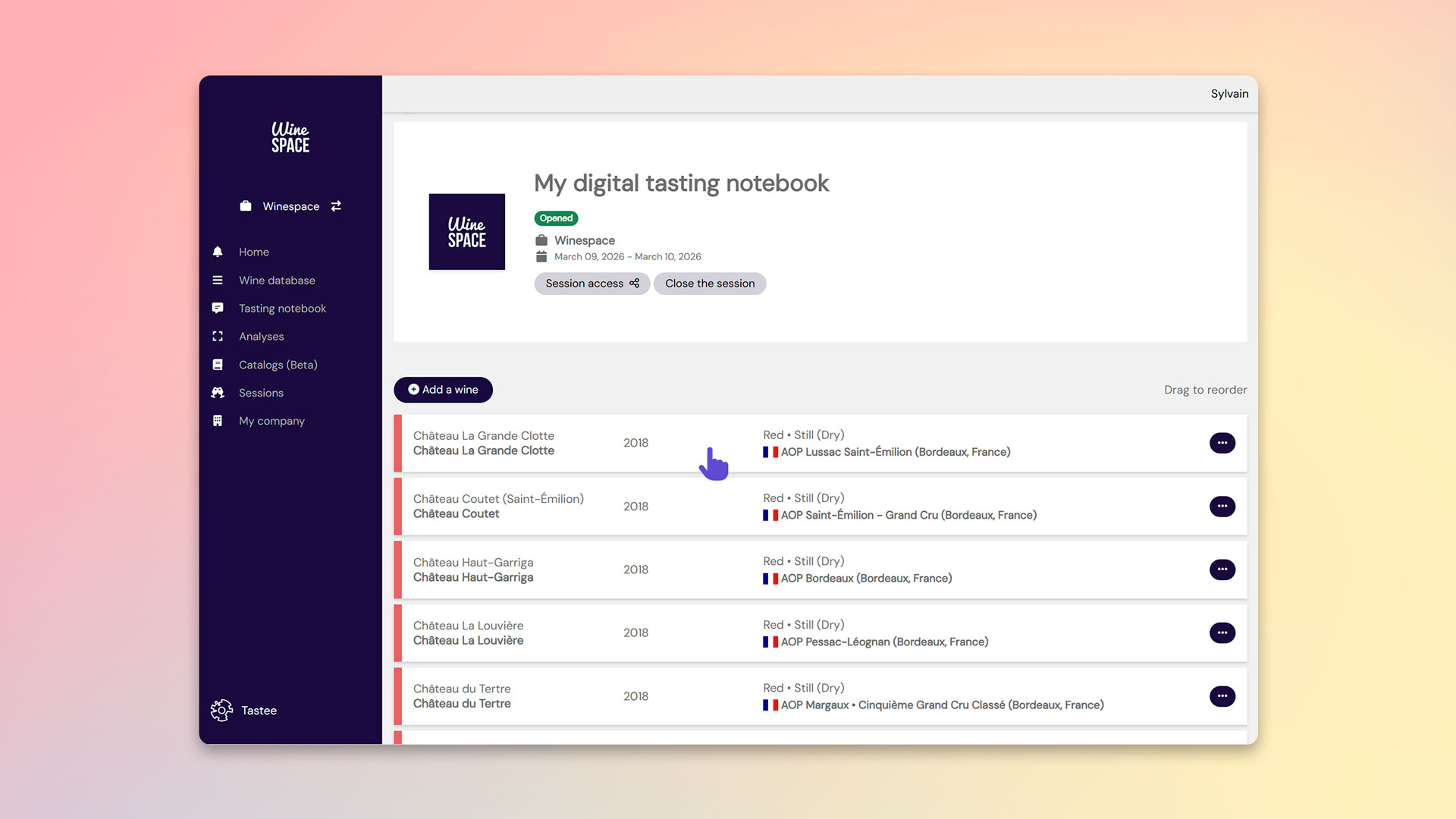
3. Reorder the display sequence by drag-and-drop
Fill in your cuvées using the template file: [download the template]
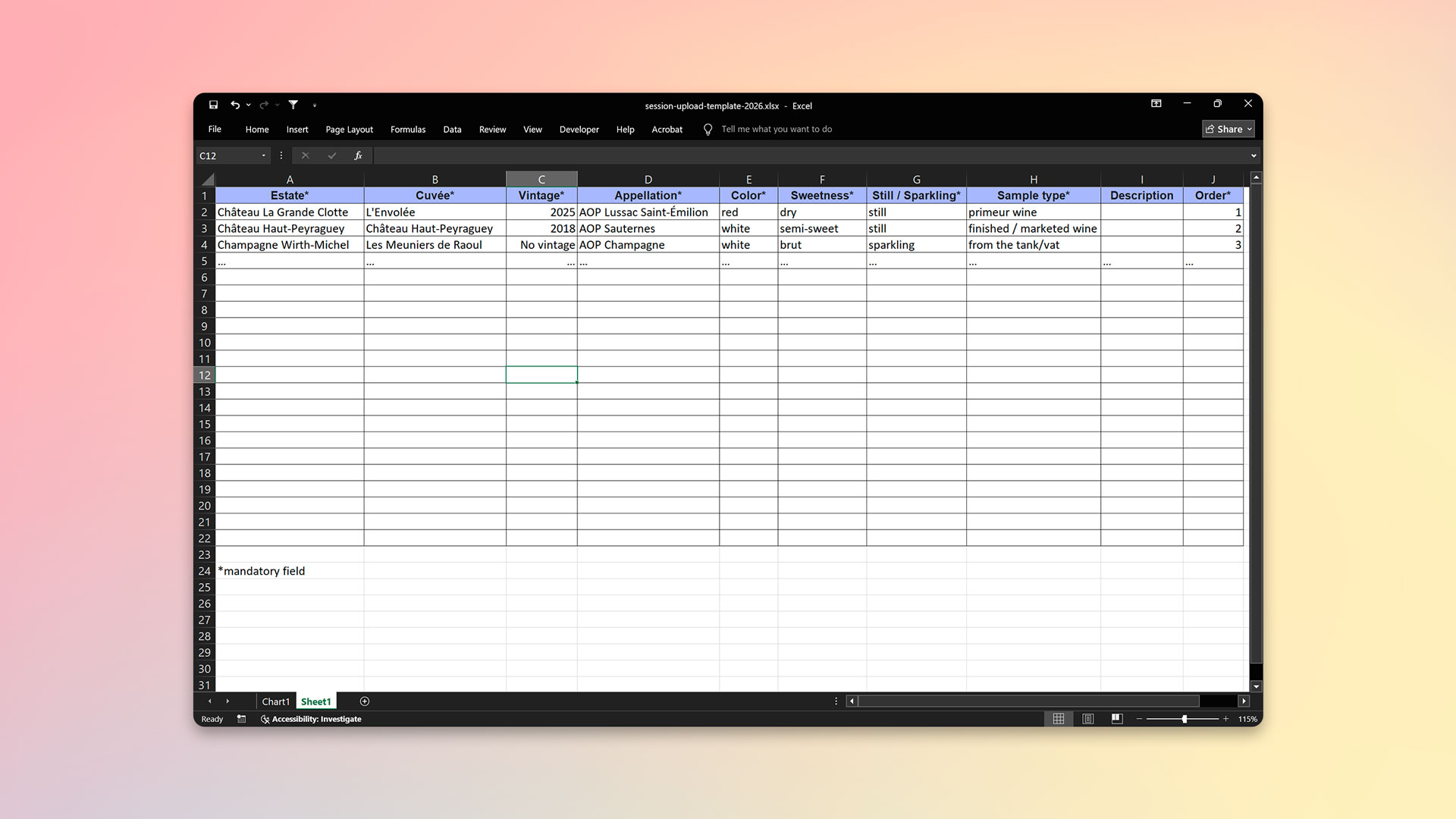
Send it to support@winespace.fr along with your session details. The Winespace team will handle the import within a few days.
Your session is created with a Pending status by default, which blocks access to the tasting notebook until you are ready.
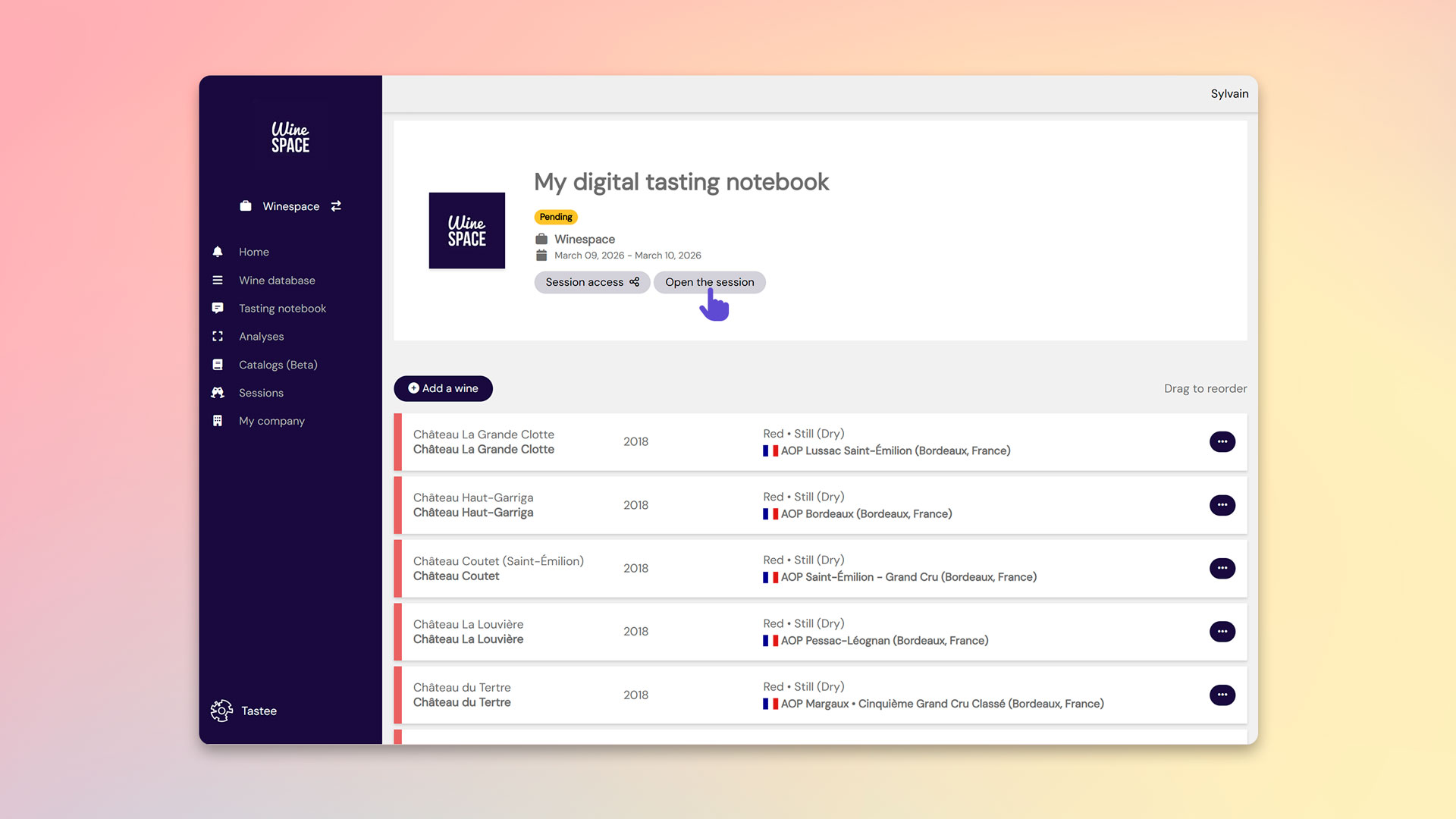
Open the session: click "Open session" to allow anyone with the link to browse the wines, view their information, and write tasting notes.
Close the session: at the end of the event, close your session to block any new access. Participants already logged in can still view the wine list, but their notes will be locked and can no longer be edited.
By default, a session closes automatically at 11:59 PM on the event end date.
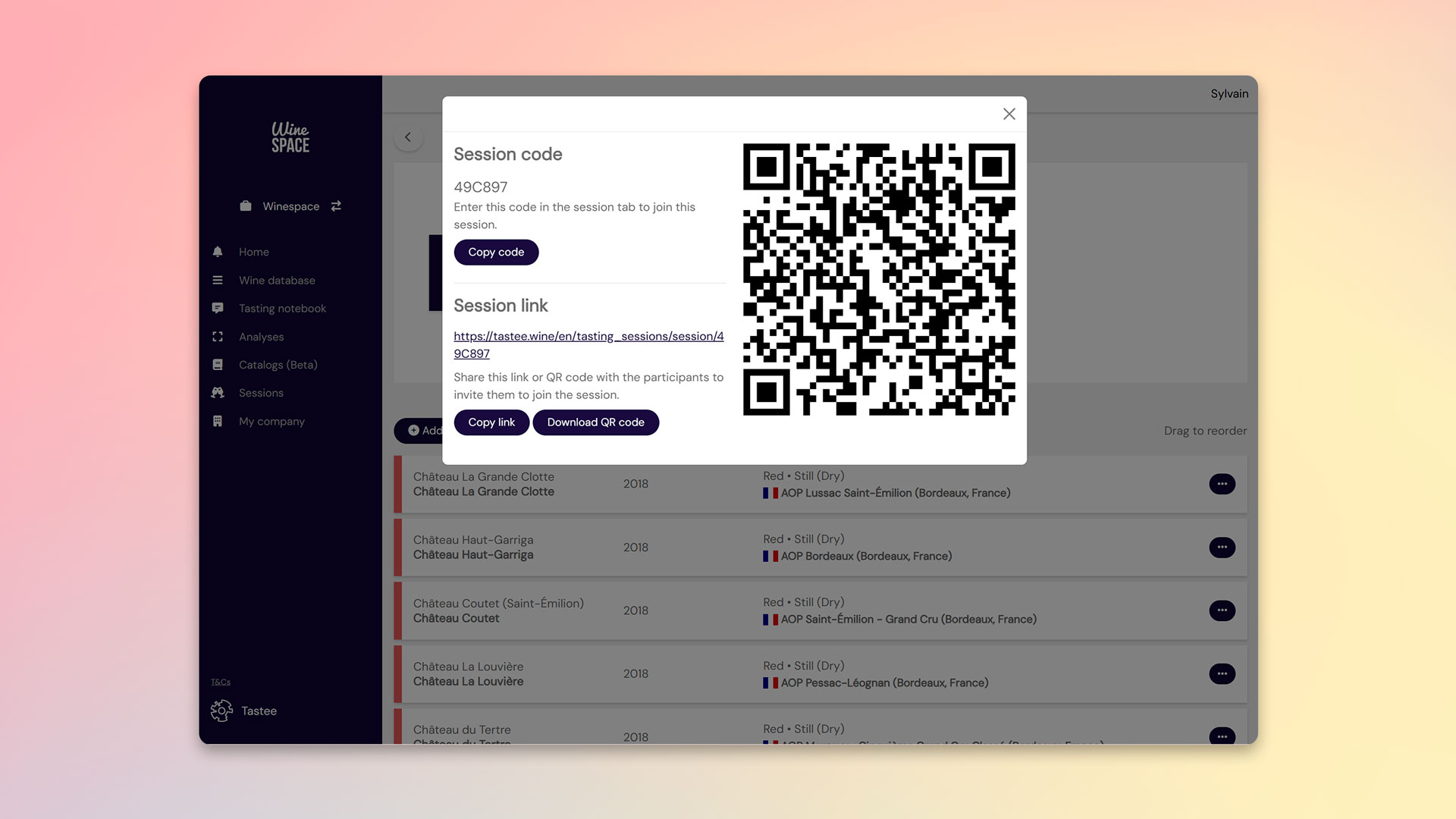
Three ways to give participants access to your online tasting notebook:
During the tasting, monitor the number of connected participants and the feedback left on each wine in real time from your dashboard.
Once the event is over, the data collected, tasting notes, scores, and participant feedback, becomes a valuable asset. Tastee's analysis tools let you turn it into concrete insights: sensory profiles, top-rated wines, audience trends, and more.